Mixer
The mixer provides a comprehensive view of all audio-units in your project, allowing you to adjust levels, panning, routing, and monitor output signals.
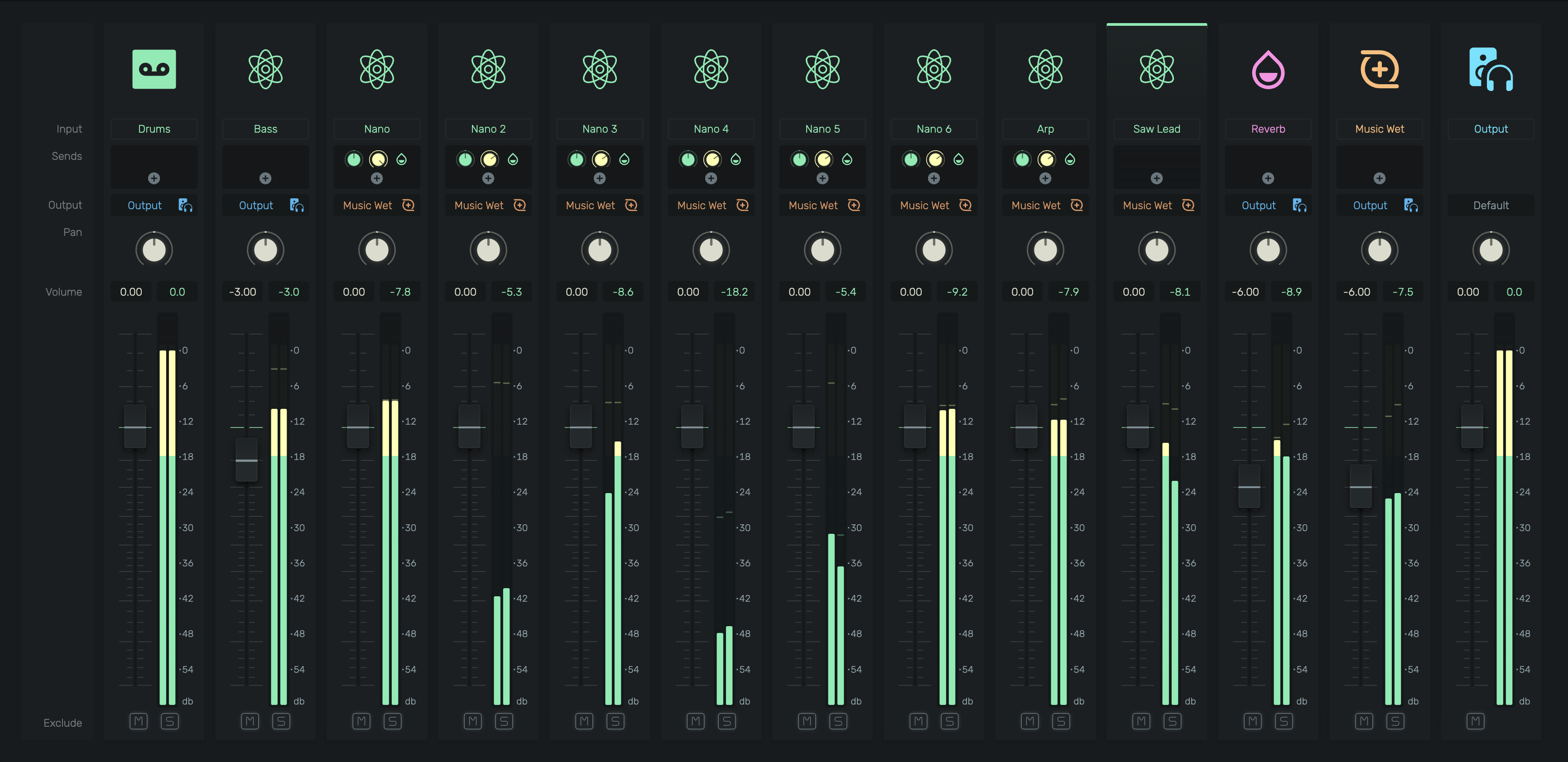
0. Overview
The mixer displays channel strips for all audio-units including instruments, audio buses, and the main output. Each strip provides controls for volume, pan, routing, and monitoring.
Access the mixer by:
- Pressing M to toggle the mixer panel
- Pressing Shift+2 to switch to the full mixer screen
- Using the Tab key to cycle through screens
1. Channel Strip
Each channel strip contains the following controls from top to bottom:
1.1 Icon
Displays the audio-unit type:
- {icon:Robot} Instrument
- {icon:AudioBus} Audio Bus
- {icon:Headphone} Main Output
1.2 Input Label
Shows the name of the audio-unit. Click to select the channel.
1.3 Sends
Route audio to effect buses or auxiliary channels.
- Click {icon:Add} to add a new send
- Each send has its own level control
1.4 Output
Select the destination for this channel's audio:
- Output: Routes directly to the main output
- Bus name: Routes to an audio bus for group processing
- {icon:Headphone} Click to monitor this channel directly through headphones
1.5 Pan
Stereo position control. Center position outputs equally to left and right channels.
1.6 Volume
Current peak level display in dB. Values turning red indicate clipping (signal exceeding 0dB).
1.7 Fader
Adjusts the channel volume in dB. The scale ranges from -54dB to +6dB.
1.8 Level Meter
Stereo peak meter showing real-time audio levels:
- Green: Safe levels
- Yellow: Approaching 0dB
- Red: Clipping (above 0dB)
1.9 Mute / Solo
- {icon:Mute}: Silences this channel
- {icon:Solo}: Solos this channel, muting all non-soloed channels
1.10 Exclude
Toggle to exclude this channel from the mixer view.
2. Signal Flow
Audio flows through the mixer in this order:
- Instrument/Source generates audio
- Fader adjusts level
- Pan positions in the stereo field
- Sends tap signal to buses (post-fader)
- Output routes to destination bus or main output
- Main Output sums all routed audio to speakers/headphones
3. Buses
Audio buses group multiple channels for collective processing:
- Create a bus by adding an Audio Bus device
- Route channels to the bus using their Output selector
- Apply effects to the bus to process all routed channels together
- Common uses: drum bus compression, reverb sends, parallel processing
4. Tips
- Hold ⌥ while adjusting faders for fine control
- Double-click a fader to reset to 0dB
- Watch for red clipping indicators and reduce levels accordingly
- Use buses to organize and process related instruments together
- The main output meter shows your final mix level