Shadertoy Visualizer
Create real-time visuals for your music using GLSL shaders. The editor supports Shadertoy-compatible syntax, so you can learn from their community and adapt techniques to your own creations.
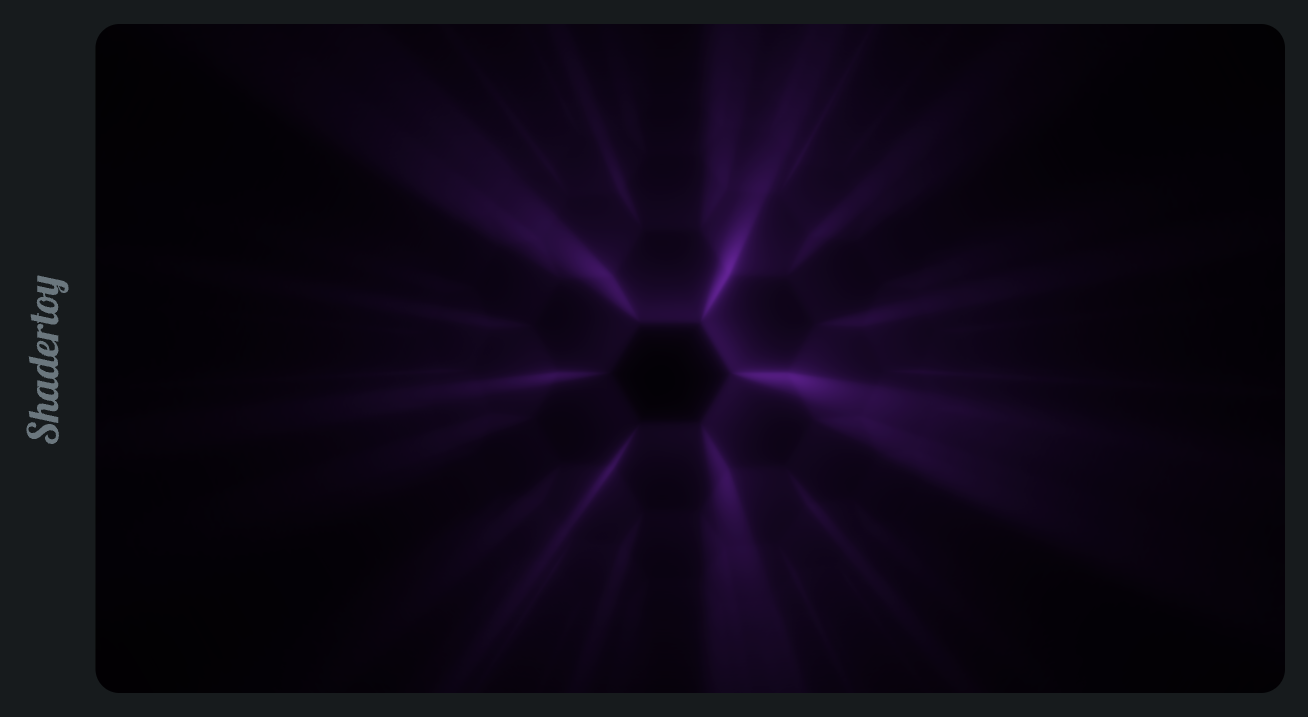
0. Overview
The Shadertoy panel lets you write fragment shaders that respond to audio and MIDI data from your project. Audio
spectrum and waveform data arrive via iChannel0, and MIDI data is available through helper functions.
1. MIDI Setup
To send MIDI to the visualizer, add a MIDI Output device to any track and select Shadertoy as the destination. This routes note and controller data to the shader. You can use clips, live input, or automation to drive your visuals.
2. Supported Uniforms
| Uniform | Type | Description |
|---|---|---|
iResolution |
vec3 |
Viewport size (width, height, 1.0) |
iTime |
float |
Elapsed time in seconds |
iTimeDelta |
float |
Time since last frame |
iFrame |
int |
Frame counter |
iBeat |
float |
Beat position (quarter notes) |
iPeaks |
vec4 |
Stereo levels (leftPeak, rightPeak, leftRMS, rightRMS) |
iChannel0 |
sampler2D |
Audio texture (512×2) |
iChannelResolution |
vec3[1] |
Audio texture size (512, 2, 1) |
3. Audio Data
Audio data is stored in iChannel0 as a 512×2 texture:
// Spectrum (row 0) - logarithmic 20Hz to 18kHz
float spectrum = texture(iChannel0, vec2(uv.x, 0.25)).r;

// Waveform (row 1) - signed audio, map to -1..1
float wave = texture(iChannel0, vec2(uv.x, 0.75)).r * 2.0 - 1.0;
4. MIDI Functions
// Returns velocity (0.0-1.0) if note is on, 0.0 if off
// Pitch: 60 = C4 (Middle C)
float midiNote(int pitch);

// Returns CC value (0.0-1.0)
float midiCC(int cc);
Example:
float kick = midiNote(60);// C3
float value = midiCC(64);
5. Not Supported
The following Shadertoy features are not available:
iMouse— Mouse inputiDate— Date/timeiSampleRate— Sample rateiChannelTime— Channel playback timeiChannel1..3— Additional texture channels- Multi-pass buffers
6. Video Export
Export your shader visualization as an MP4 video file via openDAW Menu > Export > Video...
Export Settings
| Setting | Description |
|---|---|
| Dimensions | HD (1280×720), Full HD (1920×1080), 4K (3840×2160), or custom |
| Frame Rate | 30, 60, or 120 fps |
| Duration | Seconds to render (0 = full project length) |
| Render Overlay | Include the visual overlay on top of the shader |
The export uses WebCodecs for hardware-accelerated encoding with H.264 video and Opus audio.
7. Keyboard Shortcuts
| Shortcut | Action |
|---|---|
Alt+Enter |
Compile and run |
Ctrl+S / Cmd+S |
Save to project |
8. Example
void mainImage(out vec4 fragColor, in vec2 fragCoord) {
    vec2 uv = fragCoord / iResolution.xy;

    // Spectrum glow
    float spectrum = texture(iChannel0, vec2(uv.x, 0.25)).r;
    vec3 col = vec3(0.2, 0.5, 1.0) * spectrum;

    // Pulse on beat
    float pulse = exp(-fract(iBeat) * 4.0);
    col += pulse * 0.2;

    // React to MIDI note
    float vel = midiNote(60);
    col = mix(col, vec3(1.0, 0.3, 0.5), vel);

    fragColor = vec4(col, 1.0);
}
9. AI Start Prompt
Copy and paste this prompt into any coding AI to vibe-code a shader for the openDAW visualizer.
Write a GLSL fragment shader for a Shadertoy-compatible environment with audio and MIDI input.
Use `#version 300 es` with `precision highp float;`. Do NOT include these lines — they are injected automatically.
Only write the `mainImage` function body and any helpers you need.

Entry point:
  void mainImage(out vec4 fragColor, in vec2 fragCoord)

Available uniforms:
  uniform vec3      iResolution;           // viewport (width, height, 1.0)
  uniform float     iTime;                 // elapsed seconds
  uniform float     iTimeDelta;            // seconds since last frame
  uniform int       iFrame;                // frame counter
  uniform float     iBeat;                 // beat position in quarter notes
  uniform vec4      iPeaks;                // (leftPeak, rightPeak, leftRMS, rightRMS)
  uniform sampler2D iChannel0;             // audio texture (512×2)
  uniform vec3      iChannelResolution[1]; // (512.0, 2.0, 1.0)

Audio data in iChannel0:
  Row 0 — spectrum (logarithmic 20 Hz–18 kHz):
    float spectrum = texture(iChannel0, vec2(uv.x, 0.25)).r;
  Row 1 — waveform (signed audio, map to −1..1):
    float wave = texture(iChannel0, vec2(uv.x, 0.75)).r * 2.0 - 1.0;

MIDI helper functions (pre-defined, just call them):
  float midiNote(int pitch);  // velocity 0.0–1.0 if on, 0.0 if off (60 = C4)
  float midiCC(int cc);       // CC value 0.0–1.0

NOT available: iMouse, iDate, iSampleRate, iChannelTime, iChannel1–3, multi-pass buffers.

Guidelines:
- Make the shader audio-reactive — use spectrum, waveform, iPeaks, or iBeat to drive visuals.
- Keep it GPU-friendly: avoid deep loops and heavy branching.
- Output final color to fragColor as vec4 with alpha 1.0.

Do not generate code yet. First ask the user what they want to see.
For example they might say: "A tunnel of neon rings that pulse to the beat and change color with the spectrum."